
Views: 1.2KExecutions: 327ExecutionsHow many times people ran this script. Copying it, downloading it or running it with the raw link all count. Max 10 per person a day.

Copy it, then tell others if it worked.
- Key required
- Mobile friendly
Advertisement
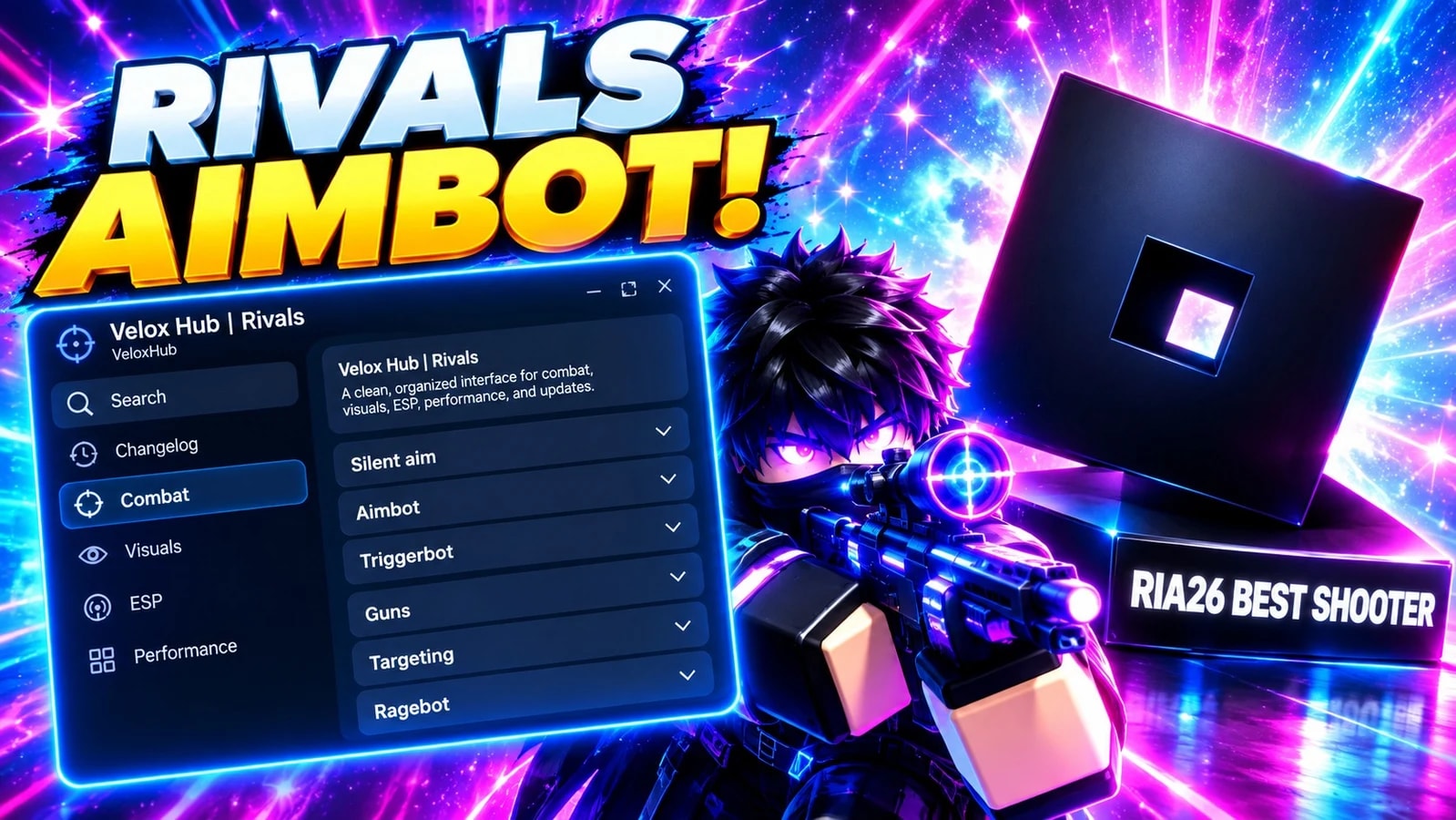
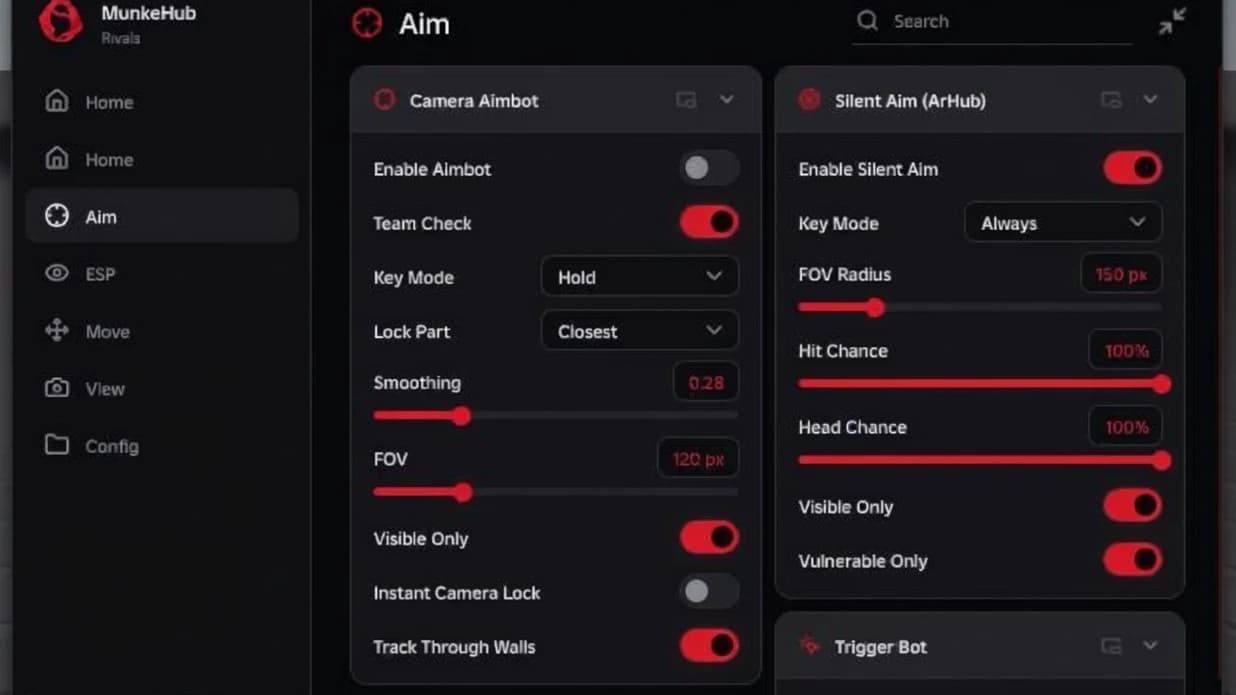
Silent Aim
Enable: “Unlock assisted aiming that helps target opponents automatically.”
Silent Aim — keybind: “Set a keybind for quick Silent Aim activation.”
Closest Part: “Automatically target the closest available body part.”
Visualize: “Show visual information for your Silent Aim settings.”
Show FOV: “Display your Silent Aim targeting area.”
FOV Color: “Customize the primary FOV color.”
FOV Color 2: “Customize the secondary FOV color.”
Follow Gunpoint: “Keep the targeting area aligned with your gunpoint.”
Follow Target: “Keep the targeting area aligned with your current target.”
Show Fill: “Display a filled FOV area.”
Fill Color: “Customize the primary FOV fill color.”
Fill Color 2: “Customize the secondary FOV fill color.”
Radius: “Adjust the size of your targeting area.”
Fill Transparency: “Adjust the visibility of the FOV fill.”
FOV Transparency: “Control the visibility of the FOV display.”
Thickness: “Customize the FOV outline thickness.”
Rotation Speed: “Adjust the FOV rotation speed.”
Hit Chance: “Set the chance for Silent Aim to activate.”
Lerp: “Customize the smoothness of target transitions.”
Aimbot
Enable: “Unlock powerful assisted aiming for more precise targeting.”
Aimbot — keybind: “Set a keybind for quick Aimbot activation.”
Show FOV: “Display your Aimbot targeting area.”
FOV Color: “Customize the primary Aimbot FOV color.”
FOV Color 2: “Customize the secondary Aimbot FOV color.”
Follow Gunpoint: “Keep the FOV aligned with your gunpoint.”
Follow Target: “Keep the FOV aligned with your current target.”
Closest Part: “Automatically target the closest available body part.”
Show Fill: “Display a filled Aimbot FOV area.”
Fill Color: “Customize the primary FOV fill color.”
Fill Color 2: “Customize the secondary FOV fill color.”
Radius: “Adjust the area used to detect targets.”
Fill Transparency: “Adjust the visibility of the FOV fill.”
FOV Transparency: “Control the visibility of the FOV display.”
Thickness: “Customize the FOV outline thickness.”
Rotation Speed: “Adjust how quickly your aim moves toward targets.”
Smoothing: “Fine-tune aim movement for smoother targeting.”
Lerp: “Customize the smoothness of aim transitions.”
Triggerbot
Enable: “Automatically react when your crosshair is over a target.”
Triggerbot — keybind: “Set a keybind for quick Triggerbot activation.”
Team Check: “Choose whether teammates are ignored.”
Reaction Time: “Adjust how quickly Triggerbot reacts.”
Shoot Delay: “Set the delay before firing.”
Max Distance: “Set the maximum targeting distance.”
Guns
No Muzzle Flash: “Remove muzzle flash effects for a cleaner view.”
No Spread: “Reduce weapon spread for more consistent shots.”
Force Modifier: “Enable custom weapon force settings.”
Force Modifier Value: “Adjust the weapon force modifier.”
Targeting
Visible Only: “Target only opponents that are visible.”
Auto Shoot: “Automatically fire when a valid target is detected.”
Anti Katana: “Add targeting protection against Katana users.”
Anti Katana — keybind: “Set a keybind for quick Anti Katana activation.”
Anti Riot Shield: “Add targeting protection against Riot Shield users.”
Anti Riot Shield — keybind: “Set a keybind for quick Anti Riot Shield activation.”
Hit Part: “Choose which body part to target.”
Max Distance: “Set the maximum targeting distance.”
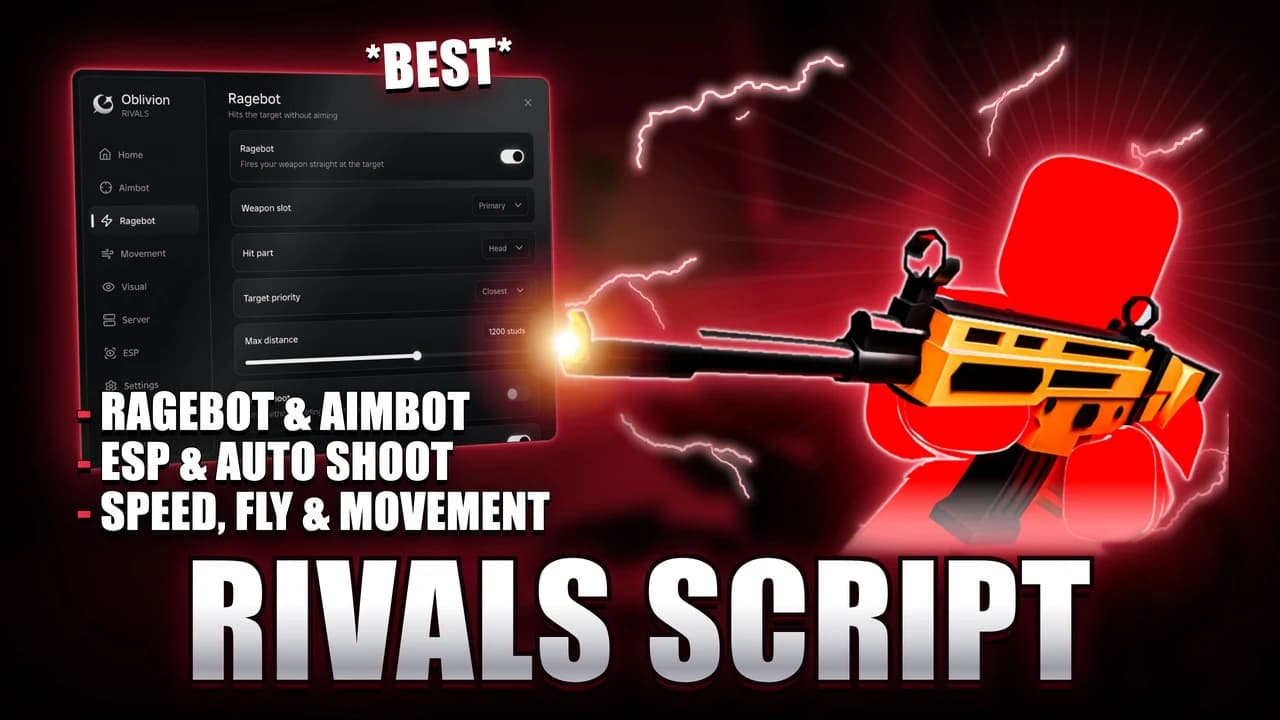
Ragebot
Enable: “Activate the Ragebot targeting system.”
FFA Mode: “Expand targeting to include every player.”
X Offset: “Fine-tune your aim position horizontally.”
Y Offset: “Fine-tune your aim position vertically.”
Z Offset: “Fine-tune your aim position for greater accuracy.”
Prediction: “Predict target movement for more accurate aiming.”
Prediction Strength: “Adjust the strength of movement prediction.”
Viewmodel / Weapon / Arms
Viewmodel: “Customize your viewmodel position.”
Viewmodel Override: “Enable custom viewmodel positioning.”
X: “Adjust the horizontal viewmodel position.”
Y: “Adjust the vertical viewmodel position.”
Z: “Adjust the depth of the viewmodel.”
Bullet Tracers
Bullet Tracers: “Add customizable visual tracers to your shots.”
Color Start: “Choose the starting tracer color.”
Color End: “Choose the ending tracer color.”
Curve Around Walls: “Customize how tracers curve around walls.”
Show Through Walls: “Keep tracers visible through walls.”
Curve Height: “Adjust the tracer curve height.”
Texture: “Choose the tracer texture.”
Speed: “Adjust tracer speed.”
Lifetime: “Set how long tracers remain visible.”
Position Lerp: “Adjust tracer movement smoothness.”
Width Start: “Set the starting tracer width.”
Width End: “Set the ending tracer width.”
Spring Expand: “Add a spring expansion effect.”
Expand Speed: “Adjust expansion speed.”
Expand Damper: “Control how quickly the expansion settles.”
Weapon
Weapon Chams: “Customize your weapon appearance.”
Color: “Choose your weapon Chams color.”
Material: “Select the weapon Chams material.”
Transparency: “Adjust weapon Chams transparency.”
Weapon Highlight: “Add a customizable weapon highlight.”
Fill Color: “Customize the highlight fill color.”
Outline Color: “Customize the highlight outline color.”
Fill Transparency: “Adjust highlight fill visibility.”
Outline Transparency: “Adjust highlight outline visibility.”
Arms
Arm Chams: “Customize your arm appearance.”
Color: “Choose your Arm Chams color.”
Material: “Select the Arm Chams material.”
Transparency: “Adjust Arm Chams transparency.”
Invisible Arms: “Hide your character's arms.”
Arm Highlight: “Add a customizable arm highlight.”
Fill Color: “Customize the highlight fill color.”
Outline Color: “Customize the highlight outline color.”
Fill Transparency: “Adjust highlight fill visibility.”
Outline Transparency: “Adjust highlight outline visibility.”
Disable Animation
Enable: “Disable selected animations.”
Types: “Choose which animations to disable.”
Motion Blur
Enable: “Enable customizable motion blur.”
Intensity: “Adjust motion blur strength.”
Sensitivity: “Adjust motion blur sensitivity.”
Death Effects
Enable: “Enable customizable death effects.”
Color: “Choose the death effect color.”
Effect: “Select your preferred death effect.”
Damage Numbers
Enable: “Show customizable damage numbers.”
Color 1: “Choose the primary damage color.”
Color 2: “Choose the secondary damage color.”
Remove In Game Damage Numbers: “Hide the game's default damage numbers.”
Color Type: “Choose how damage colors are displayed.”
Font: “Choose the damage number font.”
Text Size: “Adjust damage number size.”
Rise: “Adjust how far damage numbers rise.”
Duration: “Set how long damage numbers remain visible.”
Trajectory
Enable: “Display a customizable projectile trajectory.”
Color: “Choose your trajectory color.”
All Weapons: “Apply trajectory visualization to all supported weapons.”
Throw Speed: “Adjust the displayed throwing speed.”
Arc Height: “Customize the trajectory arc height.”
Viewmodel Customization
Viewmodel: “Customize your viewmodel appearance.”
Enabled: “Enable custom viewmodel appearance.”
Body
Viewmodel Appearance: “Customize your viewmodel appearance.”
Color: “Choose the viewmodel color.”
Material: “Select the viewmodel material.”
Disable Clothes: “Hide clothing from the viewmodel.”
Transparency: “Adjust viewmodel transparency.”
Item
Color: “Choose the item color.”
Material: “Select the item material.”
Transparency: “Adjust item transparency.”
Hitsounds
Enable: “Enable customizable hitsounds.”
Disable Ingame Hitsound: “Disable the game's default hitsound.”
Types: “Choose your preferred hitsound.”
Volume: “Adjust hitsound volume.”
Pitch: “Adjust hitsound pitch.”
Hit Notify
Enable: “Show notifications when you hit a target.”
Duration: “Set how long hit notifications remain visible.”
Message: “Customize the hit notification message.”
Available Formats: “Use {Target}, {damage}, or {hitpart} for hit information.”
ESP
Enable ESP: “Reveal useful player information with customizable ESP.”
Box: “Highlight players with customizable ESP boxes.”
Health Bar: “Display player health.”
Name: “Display player names.”
Distance: “Show the distance to players.”
Highlight: “Highlight players for easier visibility.”
Filters
Team Check: “Choose whether teammates are included in ESP.”
Max Distance: “Set the maximum ESP distance.”
Wall Check: “Show ESP only for visible players.”
FPS Boost
FPS Boost: “Optimize your game for smoother performance and higher FPS.”
Remove Particles & Effects: “Remove extra effects to reduce visual load.”
Disable Shadows: “Disable shadows to reduce graphical load.”
Disable Post Processing: “Turn off post-processing effects for improved performance.”
Low Render Quality: “Lower rendering quality to prioritize FPS.”
Disable Atmosphere & Clouds: “Remove atmosphere and cloud effects.”
Remove Textures: “Remove textures to reduce graphical load.”
Quick Boost (All): “Apply all available performance optimizations instantly.”
Frame Rate
Limit FPS: “Enable a custom FPS limit.”
FPS Limit: “Set your maximum FPS.”
FFlags Injector
How to Use: “Follow the steps below to apply FPS settings.”
1 Tap: “Tap the injector button to begin.”
2 It applies live if your executor supports it...: “Settings may apply immediately if supported.”
3 If it only saved...: “Some settings may require a restart.”
4 Fully close and rejoin Roblox to apply: “Restart Roblox to apply saved changes.”
Inject FPS Boost FFlags: “Apply optimized FPS settings.”
Custom FFlags JSON: “Enter your custom FFlags configuration.”
Inject Custom FFlags: “Apply your custom FFlags configuration.”
Save Preset to File: “Save your current FFlags configuration as a preset.”
Advertisement

MunkeHubRIVALS

luxarcRIVALS

FieldKitRIVALS

OzionHubRIVALS

SpectraScriptsRIVALS
OblivionCodesVerifiedRIVALS
Share what works, ask questions, or report an issue.
No comments yet. Be the first to share your experience with this script.
10 lines · 506 B