Views: 1.3KExecutions: 257ExecutionsHow many times people ran this script. Copying it, downloading it or running it with the raw link all count. Max 10 per person a day.

Copy it, then tell others if it worked.
- Key required
- Mobile untested
Advertisement
Chasing Hub — User Guide
🚀 Getting Started
The hub starts with a small control panel on the left.
Press K to open the full hub.
You can drag the quick panel anywhere on your screen.
⚡ Speed Boost
The Speed Boost automatically adjusts depending on your role.
Survivor: Your sprint speed gets a boost based on the Killer's speed.
Killer: Your sprint speed gets a boost based on the Survivor's speed.
Walk speed stays normal.
Use the slider to choose your boost from 0 to 10.
You can also use the quick buttons to decrease, reset, or increase your boost.
0 = Normal speed.
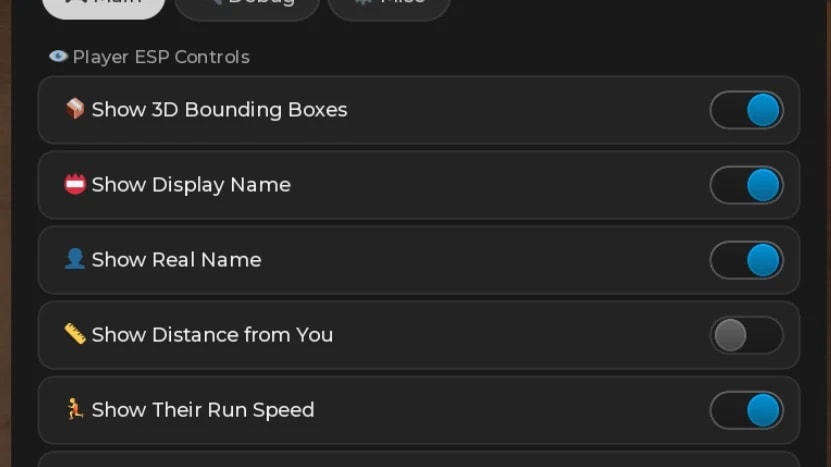
👀 Player ESP
See everyone around you with useful information.
Boxes — Shows a box around players. Red = Killer, Green = Survivor.
Display — Shows their display name.
Name — Shows their Roblox username.
Distance — Shows how far away they are.
Speed — Shows their current sprint speed.
Tracers — Draws a line from you to other players.
You can turn each ESP feature on or off separately.
🎮 Quick Panel
The quick panel gives you fast access to the main features.
Speed controls let you quickly adjust your boost.
ESP buttons let you toggle each ESP feature without opening the full hub.
The panel can also be minimized when you want more screen space.
Click and drag the top bar to move it anywhere you like.
⚙️ Main Menu
Press K to open the full menu.
The Main tab has:
Speed Slider
Player ESP settings
Individual ESP toggles
Advertisement
Share what works, ask questions, or report an issue.
No comments yet. Be the first to share your experience with this script.
10 lines · 487 B

hereticChasing 🔪